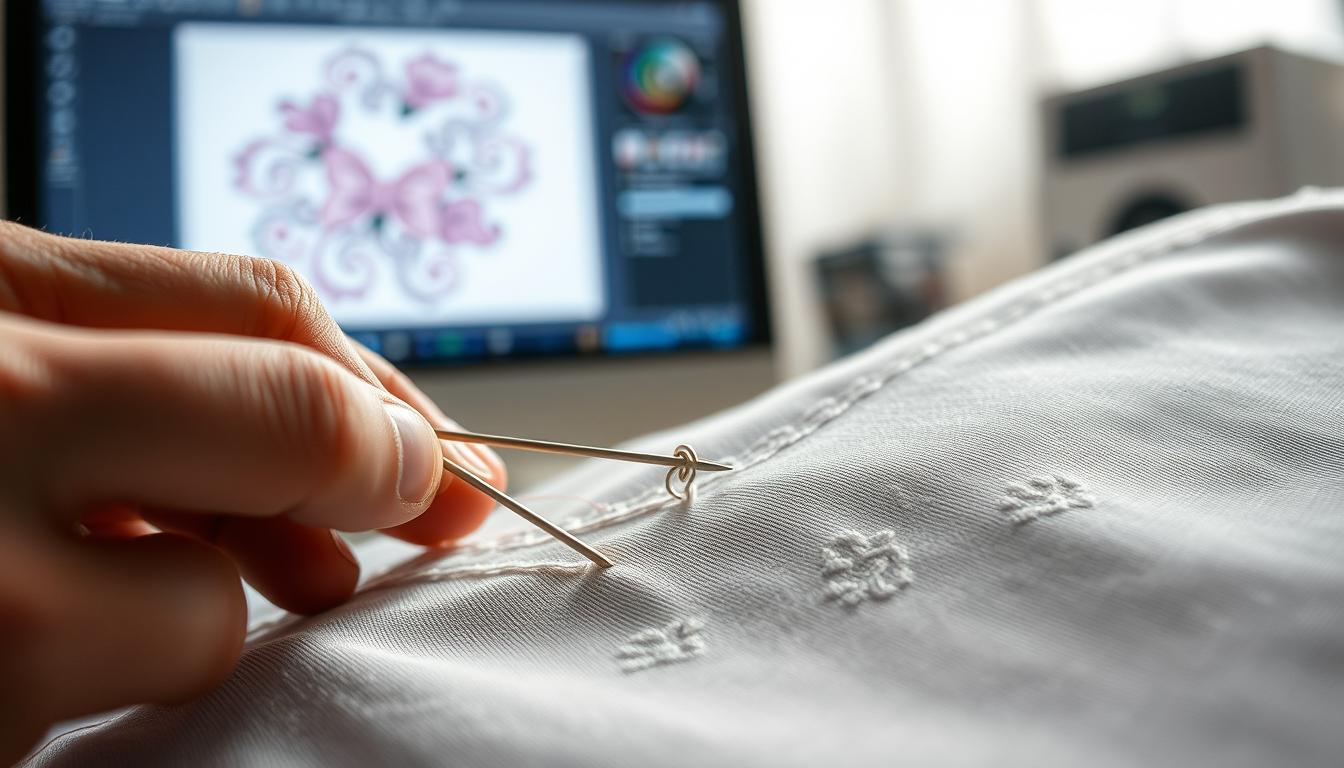
Ever wondered why a crisp company logo looks great on a polo shirt but turns messy when stitched?
Digitizing is key to turning designs into stitchable files. It converts images into formats like .dst, .pes, or .jef. This way, your embroidery machine can follow exact steps. You’ll learn why choosing the right file type is important for different machines.
Professional embroiderers use tools like Wilcom for their work. They make sure their designs are perfect for each machine.
This guide will show you how to pick the best software and hardware. You’ll learn essential stitch techniques and a step-by-step process. You’ll also see how to improve your skills and offer embroidery services.
You can start by practicing with software trials and stitch-outs. Or, you can join classes and get mentorship. Either way, you’ll learn practical steps to use right away.
Key Takeaways
- Digitizing turns artwork into machine-readable embroidery files for accurate stitching.
- File formats (.dst, .pes, .jef) matter and depend on the machine maker.
- Professional digitizers use dedicated tools like Wilcom and Tajima workflows.
- You can learn through software trials, practice stitch-outs, and guided courses.
- Mastering digitizing opens opportunities for custom embroidery and embroidery services.
What is digitizing and why it matters for embroidery
Digitizing turns artwork into instructions for embroidery machines. You start with a PNG, JPG, or BMP. Then, you convert it into formats like .dst or .pes.
The software sets up the stitch types, paths, densities, underlay, and sequencing. This way, the machine knows exactly where and when to stitch.
Learning digitizing lets you control the final embroidery. Hobbyists can personalize items like hats and shirts. Professionals can offer consistent services and scale orders accurately.
Logo digitization makes client artwork machine-ready. Commercial shops use .dst for multi-head machines, .pes for Brother models, or .exp for Melco systems. The right file type prevents costly mistakes and reduces downtime.
Choosing the right digitizing options affects cost and quality. Stitch type, density, and underlay influence thread usage and production time. For example, a dense fill on a cap might increase trims, while the right satin stitch on lettering can save thread.
Digitizing is used for logos, patches, and custom apparel. You can create 3D puff logos and small emblems for beanies. It’s about balancing texture, durability, and cost for both single items and large orders.
| Application | Typical File Type | Key Digitizing Choice | Impact |
|---|---|---|---|
| Brand logos | .dst, .pes | Satin vs. fill for edges | Clarity, brand consistency, production speed |
| Custom apparel | .dst, .exp | Underlay and stitch density | Durability on different fabrics |
| Patches | .pes, .jef | Edge type and backing settings | Clean finish and easier application |
| Hats and beanies | .dst, .tap | Shorter stitch lengths, directional pathing | Less puckering, better 3D effect |
| Embroidered gifts | .pes, .dst | Thread selection and scaling | Personalized look with cost control |
Choose the right digitizing software and tools
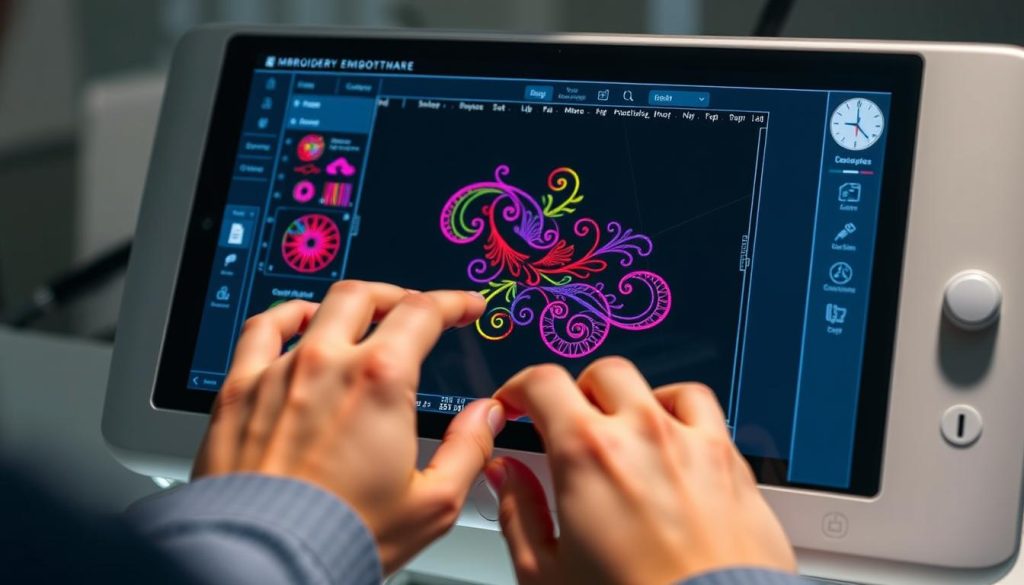
Choosing the right embroidery software and tools is key to your projects’ success. Start by matching your goals to the software tier. Beginner programs are great for simple names and monograms. Professional packages offer detailed control for commercial work.
Try out several programs before making a purchase. Many vendors like Wilcom, Floriani, and Embird offer trial periods. This lets you test export options and the interface. Make sure to check how the program saves files like .dst, .jef, and .exp to avoid issues later.
Comparison of beginner to professional software options
Beginner tools are affordable and easy to learn. They’re perfect for small orders and personalization. Mid-level software adds manual point editing and better underlay control. High-end packages like Wilcom Advanced Digitizing offer full commercial control for complex logos and high-volume work.
Trial periods, compatibility, and supported file formats
Make sure the software supports your machine’s file formats. Home brands like Brother and Janome need specific formats. Commercial machines like Tajima use .dst. Choosing software that exports multiple formats is helpful when working with an embroidery shop or service bureau.
Hardware and accessory recommendations for smooth workflow
Use a reliable computer with solid RAM and a good display for previewing stitches. Keep USB drives or network transfers ready for machine upload. Invest in proper hoops, quality thread from brands like Madeira or Isacord, and a range of stabilizers for different fabrics.
| Need | Software Example | Typical Cost | Best Use |
|---|---|---|---|
| Simple names & personalization | Embird (basic modules) | Low | Quick small orders, hobby machine embroidery |
| Growing business | Floriani Total Control | Mid | Small shop production, better stitch control |
| Commercial digitizing | Wilcom Advanced Digitizing | High | Precision logos, large orders, multiple export formats |
| Brand-specific workflows | Brother/Janome proprietary software | Varies | Seamless transfer to corresponding machines |
| File portability | Embird (format plugins) | Low to Mid | Export to .dst, .jef, .exp for diverse client machines |
Consider cost against your volume and client needs. For single projects or a local embroidery shop, lower-cost software works well. If you aim to offer commercial embroidery services, invest in professional tools for faster, more accurate output.
Master core digitizing techniques and stitch choices
Choosing the right stitches is key to clean designs. Match stitches to the design, scale, and fabric. Testing small areas saves time and avoids surprises.
Running, satin, and fill stitches have their uses. Running stitch is great for outlines and small details. Satin stitch is best for borders and short lettering.
Fill stitch is perfect for large areas and offers many pattern options. It’s great for shading and coverage.
Stitch direction and pathing affect light and fabric reaction. Plan your stitch flow to follow shapes for natural shading. Set path order to avoid long jump stitches and extra trims.
Underlay stabilizes fabric and reduces puckering. Use a compact underlay for stretchy fabrics and a denser one for loose weaves. Proper underlay improves stitch quality and color coverage.
Adjust stitch density based on fabric and thread. A medium density works well with 40-weight thread on many garments. Increase density for darker fabrics to improve opacity. Lower density prevents perforation and creates sketchy effects.
Keep stitch lengths practical when designing. Long satin runs can distort if stretched too far. For fills, keep lengths around 4 mm for shading and stability.
Efficient sequencing reduces trims and saves thread. Use travel stitches to move between areas and hide them under darker layers. Group elements by color and location to reduce machine changes and trims.
Always test stitch-outs on actual fabric and hoop setup. Check for gaps, puckering, or excessive needle punches. Adjust density, underlay, and stitch direction until it meets your standards.
If you offer stitching services, document preferred settings for future use. Consistent settings ensure reliable results and streamline production for single items or batch runs.
From artwork to machine: practical step-by-step workflow
First, get to know your digitizing software well. This will help you move fast through each step. Before you import an image, measure the embroidery area on the garment. This ensures your design fits perfectly.
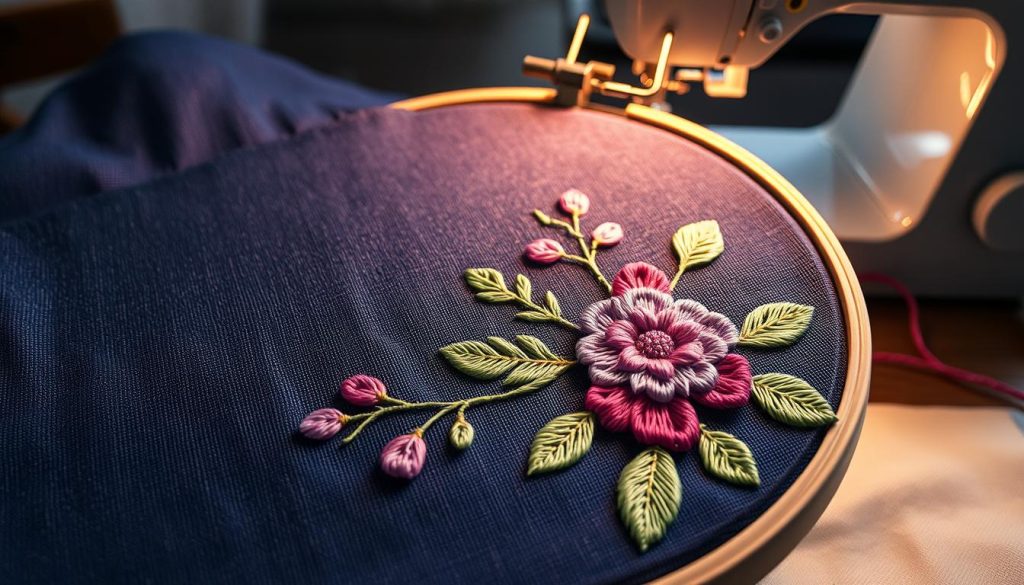
Preparing and importing your image
Use high-contrast PNG, JPG, or BMP files for better auto-trace results. Remove any unnecessary parts and background noise before you import. Make sure the artwork is at the right size and that lines or edges match the stitch boundaries.
Assigning colors, thread matching, and run sheets
Choose thread colors early by matching Pantone or client swatches to your software’s color library. Create a run sheet with thread brands, color codes, and stitch order. This helps speed up production and reduces mistakes. Always provide a clear run sheet to clients.
Simulate, export, and transfer files to the machine
Do a stitch simulation to check the sequence, overlaps, and trims. Use it to spot any areas needing changes in stitch direction or underlay. Export the file in the correct type, like .dst for Tajima, and transfer it via USB, flash drive, or network. Make sure the machine supports the file type before exporting.
Test stitch out and iterative adjustments
Make a test stitch-out on fabric and stabilizer that match the garment. Check for puckering, gaps, or excessive trims. If there are issues, go back to the file and make adjustments. Keep testing until it meets quality standards.
For big orders, remember to check needle size, thread inventory, and hooping technique. Use consistent test stitch-outs for quality control. This is important for custom embroidery or when clients look for local services.
| Workflow Step | Key Actions | Why It Matters |
|---|---|---|
| Image Prep | Crop image, set scale, lock picture | Prevents distortion and sets accurate stitch counts |
| Digitize | Choose stitch types, set direction, add underlay | Controls pull, coverage, and final texture |
| Color & Run Sheet | Match Pantone to thread, print run sheet | Speeds production and keeps client colors accurate |
| Simulate & Export | Preview stitch order, export correct file format | Reduces machine errors and saves time |
| Test Stitch-Out | Stitch on matching fabric, inspect, iterate | Ensures quality for single items and bulk jobs |
| Production Prep | Needles, thread stock, hoop choice, QC steps | Streamlines runs for embroidery services and online embroidery orders |
Learn from practice and professional resources to scale your skills
Start with focused practice and a clear plan. Build stitch-out sample squares that vary in density, stitch length, underlay, and pattern. Label each fabric sample with settings and keep a notebook for quick reference when you digitize new projects.
You can learn a lot by progressing from single-color designs to multi-color logos. Try multiple software trials, follow live training from experienced instructors, and commit to a routine that includes daily or weekly practice embroidery sessions.
Structured practice methods and sample libraries
- Create a library of samples sorted by fabric type: cotton, polyester, mesh, and twill.
- Make labeled mock-ups for hats, patches, and apparel so you can see how settings affect different shapes.
- Document thread brand and color codes for reliable color matching in client work.
Online learning, communities, and mentorship
- Join forums and Facebook groups like Embroidery Machine Help to ask practical questions and share results.
- Use YouTube tutorials and paid mentorship for feedback on digitizing techniques and stitch pathing.
- Post test stitch-outs and request critiques so you learn faster and avoid repeated mistakes.
Turning skills into services: embroidery services, online embroidery, and local shops
- Offer run sheets, color matching, and test stitch-outs as part of professional stitching services.
- Provide multiple file formats clients need and present logo mock-ups for approvals.
- Scale offerings from custom embroidered gifts to bulk apparel by partnering with an embroidery shop or setting up an online storefront.
Use professional resources when you need higher volume or specialized digitizing. Brands like Wilcom offer advanced training and support. For turn-key work, consider commissioning a commercial digitizer or using an established digitizer service for complex logos.
| Practice Focus | What to Track | Benefit |
|---|---|---|
| Sample Squares | Density, stitch length, underlay, fabric | Quick reference for settings that work on real materials |
| Mock-ups | Hat crowns, chest logos, patches, 3D puff | Visual client approvals and better placement decisions |
| Community Feedback | Stitch images, machine settings, thread brands | Faster troubleshooting and technique improvement |
| Service Packaging | Run sheets, file formats, test stitch-outs | Professional delivery for embroidered gifts and bulk orders |
| Professional Tools | Wilcom training, commercial digitizers, mock-up tools | Access to advanced workflows for client-ready files |
Conclusion
To build reliable skills, follow this guide’s steps. Start by choosing software that meets your needs. Then, learn about stitch types and how to use them.
Set the right stitch density and underlay, and pick colors carefully. Regularly test your work to catch any mistakes early. This way, your embroidery will look sharp and last long.
Start with small projects and gradually move to bigger ones. Keep track of what works best for different fabrics and sizes. When you start working for others, make sure your files are right for their machines.
Use size locking, proper direction, and color matching to meet client needs. This ensures your work looks professional and meets expectations.
As you get better, offer a range of services like apparel, patches, and special techniques. Use tools to make ordering easier and show off your work to customers. With dedication and the right approach, you can turn your hobby into a successful business.
 English